

Jakarta, ThedailyID — Forgetting social media passwords is a common issue, especially as users manage multiple accounts across platforms. However, several simple methods can help users check or recover their passwords without creating a new account.
Instead of panicking, users can first explore built-in features on their devices. Most smartphones and browsers store login credentials securely, allowing quick access when needed.


Here are practical ways to check or recover saved passwords:
- Check saved passwords on Google Chrome
Open Chrome and go to Settings > Autofill > Password Manager. Users will see a list of saved accounts. Tap the eye icon to reveal the password, but Chrome will first ask for device verification, such as a PIN, fingerprint, or Face ID.
This method works if users previously allowed Chrome to save their login details.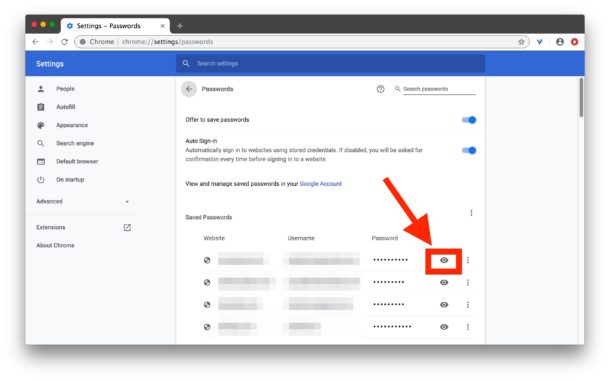
- Access passwords through device settings (Android & iOS)
On Android, go to Settings > Google > Password Manager to view stored credentials linked to your Google account.
On iPhone, open Settings > Passwords, then authenticate using Face ID, Touch ID, or passcode.
These sections store login data for apps and websites, making them one of the easiest ways to retrieve forgotten passwords. - Use autofill when logging in
When opening a login page, browsers or apps often suggest saved accounts automatically. Tap the suggested account, and the system will fill in the username and password instantly.
This feature works best if autofill has been enabled beforehand in device or browser settings. - Check passwords saved in your Google Account
Users can visit the Google Password Manager via their account settings. It syncs passwords across devices, so even if you switch phones or laptops, saved credentials remain accessible.
Again, identity verification is required before viewing sensitive information. - Reset password using “Forgot Password”
If the password is not saved anywhere, use the platform’s reset option. Most social media apps will send a reset link or verification code via email or SMS.
After verification, users can create a new password and regain access to their account. - Use a password manager for future access
Apps like 1Password or Bitwarden help store and generate strong passwords securely.
These tools reduce the risk of forgetting passwords while improving overall account security.
Experts recommend using strong, unique passwords for each account and enabling two-factor authentication (2FA) for extra protection. This adds a second verification step, making accounts harder to hack.
At the same time, users should avoid saving passwords on shared or public devices. Keeping login information secure remains crucial as cyber threats continue to grow.