

Jakarta, ThedailyID — Running out of storage space can slow down your smartphone, prevent new app downloads, and make it difficult to save photos or videos. Fortunately, both Android and iPhone offer built-in tools that help users reclaim storage without affecting essential system files.
A smartphone’s storage holds two main types of data: the operating system and personal files such as apps, photos, videos, documents, and music. While the operating system grows with software updates, users cannot remove those files. Instead, they can free up space by deleting unnecessary content and managing installed apps.


How to free up storage on Android
1. Check storage usage
Open Settings and tap Storage to see which files or apps occupy the most space on your device.
2. Turn on Smart Storage
Android includes a Smart Storage feature that automatically removes backed-up photos and videos when storage runs low.
Go to Settings > Storage > Free up space, then enable Smart Storage. According to Google, some options are only available on devices running Android 14 or later.
3. Delete files manually
Open Settings > Storage > Free up space, then review categories such as photos, videos, and rarely used apps.
Select unwanted files and move them to the trash. However, double-check your selection before deleting anything important.
How to free up storage on iPhone
1. Check available storage
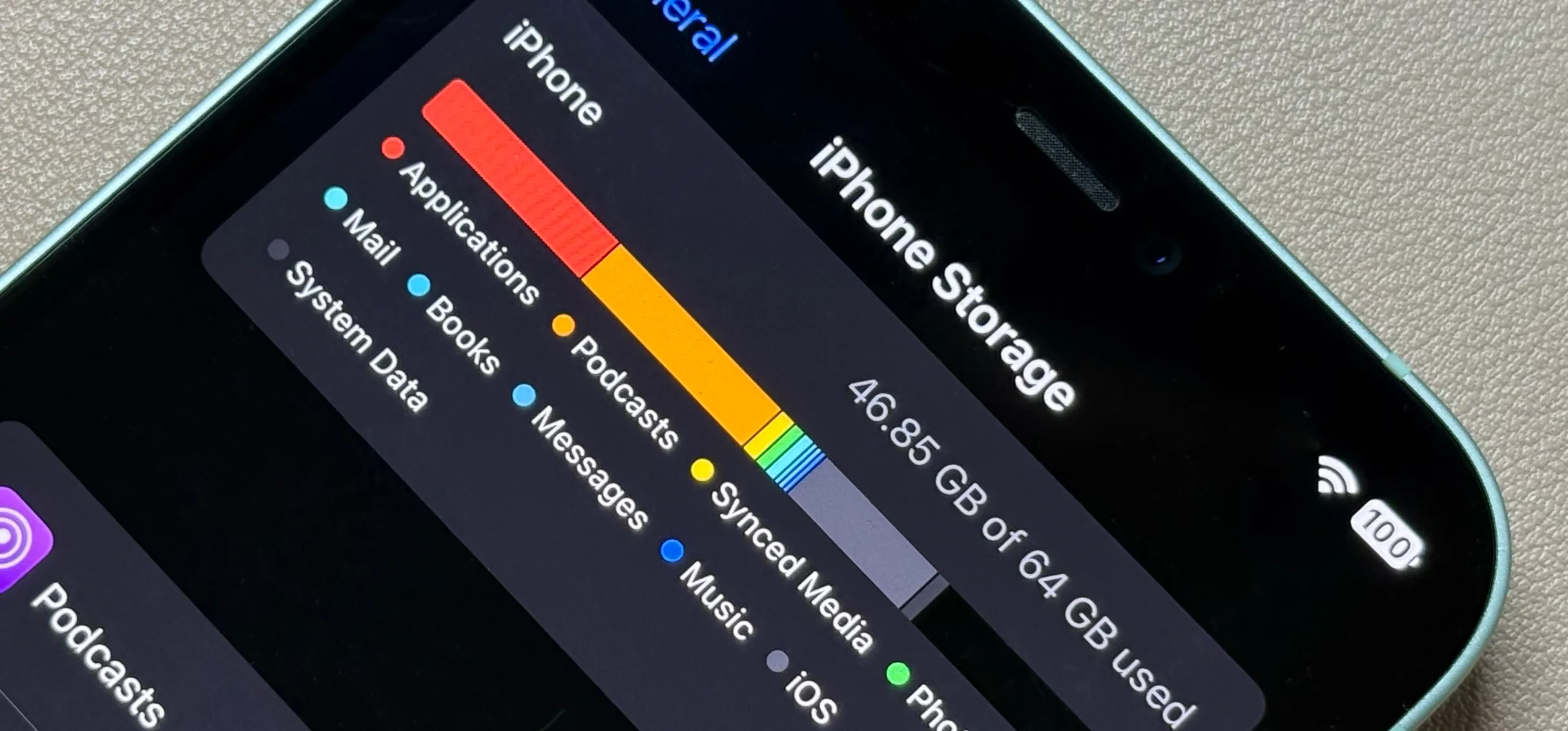
Go to Settings > General > iPhone Storage to view how much space remains and which apps use the most storage.
2. Enable Offload Unused Apps
Apple’s Offload Unused Apps feature removes apps you rarely use while keeping their documents and data.
To enable it, open Settings > Apps > App Store, then turn on Offload Unused Apps. If you need an app again, simply tap its icon to reinstall it.
3. Delete unused apps
Press and hold an app icon, then select Remove App followed by Delete App.
Be careful not to choose Remove from Home Screen, as that option only hides the app instead of deleting it.
4. Remove unnecessary files
Open the Files app, browse your folders, and delete documents or downloads that you no longer need.
5. Review downloaded TV content
If you use Apple’s TV app, check your downloaded movies or shows and remove any content you no longer watch.
Regularly deleting unused apps, large files, and old downloads can improve device performance while ensuring enough storage remains for future updates and new content.